Acknowledged
CIQQA-3913

Unable to save settings - Garmin Server

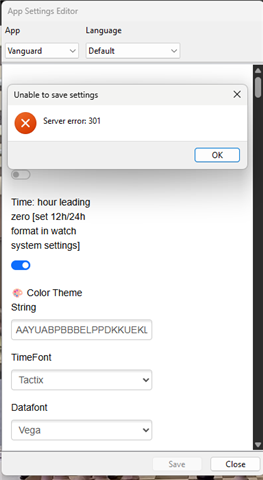
Currently receiving frequent complaints about app / watchface settings not being applied or not working at all.
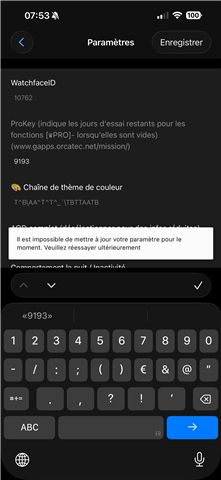
This is what users see when they press Save in the settings list in the ConnectIQ app:



Even on the simulator, I often get error messages:
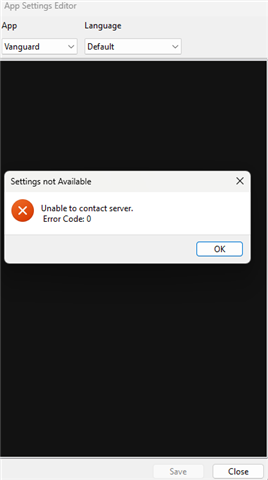

These usually disappear after a few attempts, but they become annoying over time.
I cannot specify the exact steps to reproduce the problems, they also occur when the settings consist of only a few fields with numbers (to prevent the problem with invalid characters such as \\ in the string fields).

  • For me Connect IQ tells me the applications setting is successfully saved, but it isn't. Crucially it works the first time I save after installing the app, but not subsequent times.

  • Thank you so much for your help, I have no idea why we never thought of that. Because of you, I manage to use it again 

  • In case anyone is interested here's a solution I found.

    Step 0: Save Your Layout (CRITICAL)

    Before doing anything else, open the settings for the watch face in the Connect IQ app on your phone. Even if you cannot change settings, you can usually still see them. Scroll to the Backup/Settings String, copy it, and paste it into a Note on your phone. Uninstalling the app will permanently delete this data.

    Step 1: Update the On-Device Store via USB

    The "Unable to update" error is often caused by the watch's internal "Connect IQ Store" app failing to update over Bluetooth/Wi-Fi.

    • Connect the watch to a computer and open Garmin Express.

    • Look for an update for the Connect IQ Store (e.g., version 2026.2.61).

    • Install the update via the USB cable to ensure a clean, hardwired sync.

    Step 2: Switch to a Stock Watch Face

    On the Garmin watch, hold the Menu button > Watch Face and select a default Garmin face (like Digital or Analog). You cannot properly uninstall or "flush" a watch face while it is actively running.

    Step 3: Perform a "Clean Reinstall"

    • In the phone's Connect IQ app, uninstall the watch face.

    • Open the Garmin Connect app and sync the watch to confirm the deletion.

    • Hard Restart the Watch: Hold the top-left Light button for 15 seconds until the screen goes black, then turn it back on. This clears the corrupted cache file (.SET) that was blocking the settings.

    Step 4: Reinstall and Restore

    • Redownload the watch face from the Store.

    • Open the settings, paste your Backup String from Step 0 back into the app, and hit Save. The settings should now sync perfectly.

  • Maybe ask John.Polar, Peter.Coros or Maya.Suunto ;)