add the -d build option to App Settings Editor

The App Settings Editor for the Simulator is requiring the "Rebuild" option otherwise it presents a blank screen:
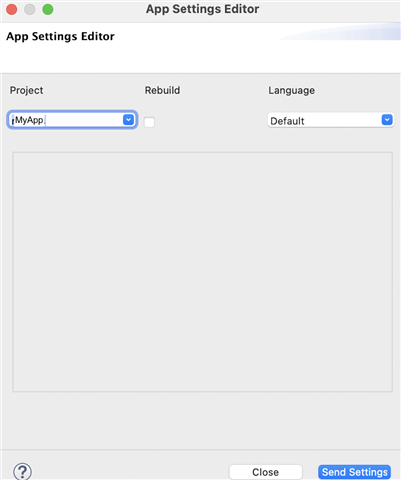
   

When I do check the "Rebuild" option, the build fails with "Duplicate declaration of symbol" because I'm using Jungles excludeAnnotations

project.manifest = manifest.xml

rectangle.excludeAnnotations = round
round.excludeAnnotations = rectangle

and it's missing the -d option, like -d fenix5_sim

So, my question is, how do I get the Rebuild option to build with a -d option?  In Eclipse please, I'm not ready for VSC yet.

Or, alternatively, how do I get the App Settings Editor to run without the Rebuild option? (I don't recall having this requirement before now)

Mac, Eclipse, SDK 4.0.4

  • Sure I'm not disagreeing with any of that. All I said is I don't know why they don't see the option. They said they were on SDK 4.0.4, so I took that at face value. I'm not inclined to dissect the precise details of their Connect IQ installation since I don't think it matters at this point.

    As I said recently:

    Testing this briefly in Windows, I see this option whether or not the currently running app has properties/settings. My simulator version is 4.0.4.

    In an older comment in the this thread, I incorrectly stated that they weren't seeing the option because their app doesn't have settings, but that's clearly not the reason. I'll go back and edit it so there's no confusion.

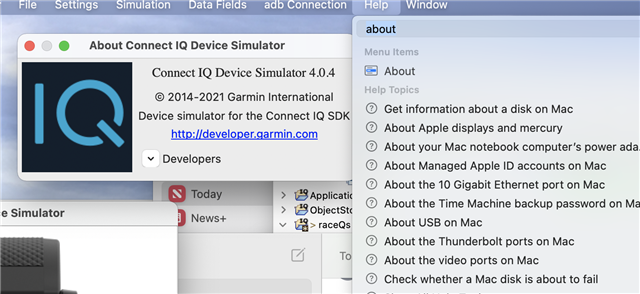
  • Help>About in the sim will show the version of the sim that's running.  You also want to be running the 4.0.4 Eclipse Plugin.

    Interesting, I seem to have a different Sim. My Sim help is null:

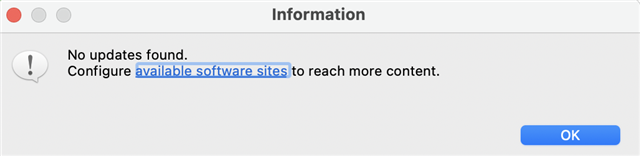
    Not sure how to check the version of the Eclipse Plugin. Eclipse Check for Updates returns

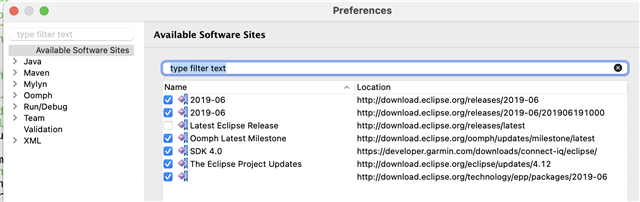
    available software sites returns:

    where I see


    which looks like the SDK, not the plugin (it's all "under the hood" so above my pay grade.)

    Maybe the 4.0.0 SDK is being used, but maybe the sim is an older version and wasn't restarted after switching SDKs.

    I have restarted my Mac several times since returning to SDK 4.0.4.

    Looks like The Mac implementation has some issues????

    [EDIT]

    Digging into my running processes with the sim running, I see this entry in "Open Files and Ports" for the "Connect IQ Device Simulator" process:

    /Users/alansmith/Library/Application Support/Garmin/ConnectIQ/Sdks/connectiq-sdk-mac-4.0.4-2021-07-01-9df386fcd/bin/ConnectIQ.app/Contents/MacOS/simulator

    Which looks like a version 4.0.4 

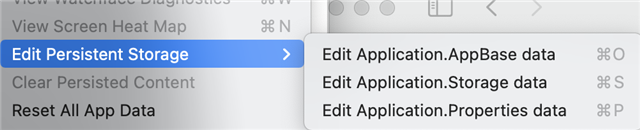
    But now, my Settings are working and I see Application.Properties.Data:


    So I think you're right, when it was misbehaving, somehow I was running an incompatible version of the Sim.

    All too tricky for me. It's working now, and if it starts playing up again, I'll check the sim versions.

    Thanks to you all for your assistance.

    [EDIT #2]

    And I have worked out I have to enter "About" in the empty Help screen to get the About info (not entirely intuitive):

  • Just an idea but did you use something outside eclipse to see what's actually in the folders vs you see in Eclipse? not all folders in eclipse show what's "really there" unless you'd done a refresh on them. 

  • I just rebooted my Mac and SDK manager is no longer available. The menu option "Open SDK Manager" does not respond.

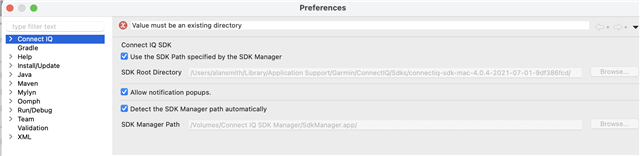
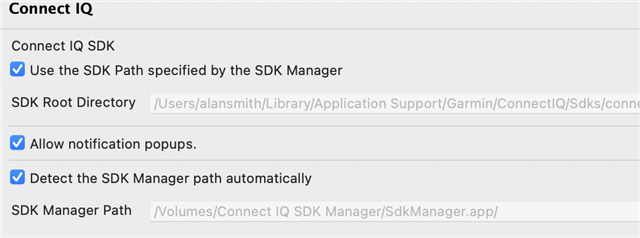
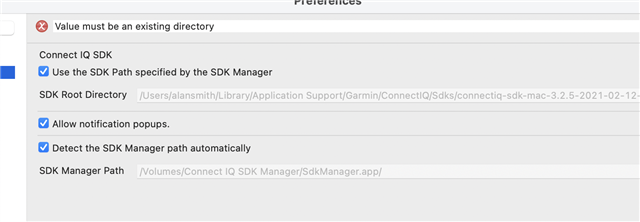
    Eclipse>Preferences>ConnectIQ shows SdkManager.app not present:

    When  execute connectiq-sdk-manager.dmg from my Downloads folder, it once again appears.

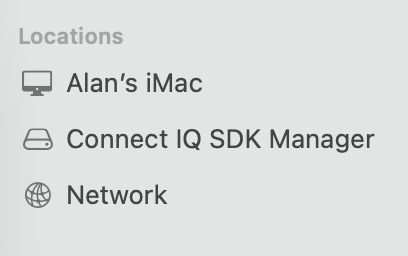
    But it's being installed in a weird location, as a separate file system. Here it is as a "Location" in Finder:

    pwd
    /Volumes
    Alans-iMac:Volumes alansmith$ ls -l
    total 0
    drwxr-xr-x  3 alansmith  staff  170 28 Jan 09:33 Connect IQ SDK Manager
    lrwxr-xr-x  1 root       wheel    1 16 Jul 08:51 Macintosh HD -> /
    Alans-iMac:Volumes alansmith$ 
    

    When I attempt to move it to somewhere more sensible, it fails with "Read-only file system":

    mmv: SdkManager.app/Contents/_CodeSignature/CodeResources: Read-only file system
    mv: SdkManager.app/Contents/_CodeSignature: Read-only file system
    mv: SdkManager.app/Contents/Info.plist: Read-only file system
    mv: SdkManager.app/Contents/MacOS/sdkmanager: Read-only file system
    mv: SdkManager.app/Contents/MacOS: Read-only file system
    mv: SdkManager.app/Contents/Resources/acknowledgements.html: Read-only file system
    mv: SdkManager.app/Contents/......
    ...
    

    But then disappears after a reboot.

    I have to remember to re-install it after a reboot.

    Is this expected?

  • But it's being installed in a weird location, as a separate file system. 

    That's the location of the filesystem that's mounted when you double-click on the DMG. The SDK manager is just using whatever path you ran it from as its "install location".

    To install it properly, drag-and-drop SdkManager from the volume to the Applications folder using Finder, then run it from the Applications folder.

    In an ideal world, you would be directed to do this (as with many macOS apps), but it is what it is. (I suppose they assume that most macOS users would be familiar with this process.)

  • To install it properly, drag-and-drop SdkManager from the volume to the Applications folder using Finder, then run it from the Applications folder.

    But that's my point, there doesn't appear to be a way to "drag-and-drop SdkManager".

    In the terminal window, mv fails with the error noted above "read-only file system"

    In Finder, it appears as a "Location" which can't be moved.

    Fun eh?

  • Then how do you think I did it?

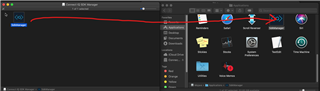
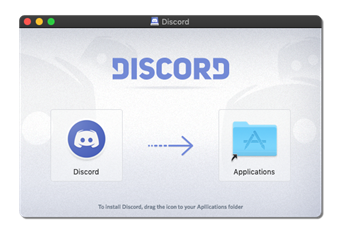
    1) Double click on DMG that you downloaded. A finder window will open in the volume "Connect IQ SDK Manager" as shown on the left side of the screenshot above, containing the SDKManager app file

    2) Open another finder window and select the Applications folder, as shown on the right side of the screenshot above

    3) Drag-and-drop SDKManager from the first finder window to the second one

    4) Double-click SDKManager in the Applications folder

    5) ???

    6) Profit!!!

    In Finder, it appears as a "Location" which can't be moved.

    Once again, that's the mounted filesystem contained in the disk image (DMG) that you downloaded from Garmin's site. Pretty standard way of distributing Mac software. But the key is you're supposed to copy the contents of the file system somewhere else (like your Applications folder), as opposed to trying to move the mounted file system somewhere else (which doesn't make sense) or just running the contents in-place all the time (which as you noted, doesn't work so well.)

    The reason it's not working for you is because it sounds like you're trying to move the mounted disk image filesystem itself, and not the app contained within it.

    In the terminal window, mv fails with the error noted above "read-only file system"

    You'll notice I didn't suggest using Terminal. When you drag-and-drop the way I suggested, it's a copy and not a move. It's possible that using cp would've worked, but it would be a lot easier to just use Finder as suggested

    This is really no different than the install procedure for most other mac apps (from DMG), except for the fact that most other mac apps actually either direct you to drap and drop the app to the Applications folder, they ask you if you want them to do it automatically for you, or they actually have an installer.

    e.g.

  • Double click on DMG that you downloaded. A finder window will open in the volume "Connect IQ SDK Manager" as shown on the left side of the screenshot above, containing the SDKManager app file

    Thanks for the Mac lesson, I only single-clicked the dmg. Didn't know that was required. (Old dog, new tricks).

    I was dragged kicking and screaming from Unix -> Windows ->Mac when I started developing my app for the Apple Watch and had to invest in a Mac for that. Rather than trash my investment, I've stayed with Mac, but still find a lot of the MacOS stuff pretty bewildering.

    Thanks again for your assistance and patience.

    [EDIT]

    And after the reboot, I find I have to re-point Eclipse to the Applications folder:

  • But now, with Eclipse's Connect IQ Preferences pointed to Applications folder:

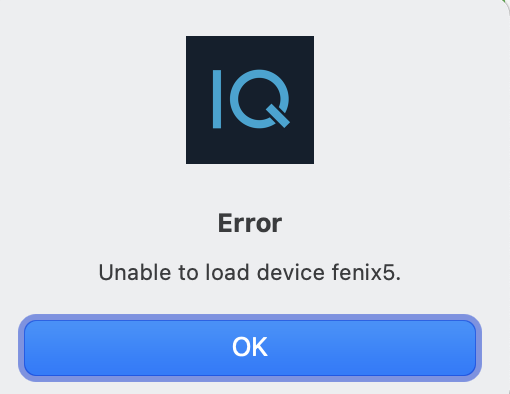
    The build fails to connect to the simulator!

    This was happening in earlier SDK's and I worked around by starting the simulator in a terminal window from the SDK folder.

    I wonder where it now resides?I can't find simulator executable in /Applications/SdkManager.app.

    Ah, there it is:

    .//Library/Application Support/Garmin/ConnectIQ/Sdks/connectiq-sdk-mac-4.0.4-2021-07-01-9df386fcd/bin/ConnectIQ.app/Contents/MacOS/simulator

    But after

    sudo .//Library/"Application Support/Garmin/ConnectIQ"/Sdks/connectiq-sdk-mac-4.0.4-2021-07-01-9df386fcd/bin/ConnectIQ.app/Contents/MacOS/simulator
    

    problems 

    (help?)

  • Did you run SDKManager from the applications folder first, as suggested? Does it indicate that all your devices are downloaded or not? If not, download devices and try again.

    And as you have surmised, the location of the SDK manager has no bearing on the location of the SDK.

    I don't think you should have to be running the simulator manually -- something doesn't seem right there. I just tried installing Eclipse in macOS. I installed the CIQ plugin, generated a dev key and created a new watch app. When I ran the app, the simulator opened without any problems.

    Maybe your plugin settings are corrupt somehow? You could always try moving/renaming the ~/.p2 folder and reinstalling Eclipse.