Garmin Express v 7.29.0 (still) does not give any Manage Maps option for my Edge Explore 2

Similar issue as described here: 

https://forums.garmin.com/apps-software/mac-windows-software/f/garmin-express-windows/434074/garmin-express---no-manage-maps-option-in-software#pifragment-1303=1

where it was reported solved.

I still do not gat any Map options in Garmin Express, which updated to 7.29.0+46140687 today.

I uninstalled (with remove all data), rebooted PC, re-installed. Still same.

The solution given in above thread was to: 

"If still experiencing this, please try the following steps and let us know how it goes:

  1. Connect your epix Pro to the computer
  2. Open the Garmin Folder
  3. Delete the GarminDevice.xml file
  4. Unplug from the computer and wait for it to boot to the main menu
  5. Delete the device from Garmin Express
  6. Re-add it to Garmin Express"

I have looked for the xml in my Garmin Folder (which is under Program Files (x86), W11).

Only xml there is: express.visualelementsmanifest.xml and does not contain any info possibly related the the device.

So stuck with that work-around too.

Please advice how I can manage the maps on my Edge Explore 2....

Thanks in advance.

  • Please try the following steps to see if it resolves the current concern:

    • Remove the device from Express
    • Close the Express
    • Open the Garmin drive on your computer
    • Delete the Garmin.Device.XML file
    • Restart the device & computer
    • Retry with Express
  • Kind of funny that this answer was voted best answer, while two months ago in original question I quoted this exact instructions as tried but failed.

    What's more, the said XML is not to be found in what I consider 'the Garmin drive'. 

    So please, either be more specific (what or where to find or recognize the 'Garmin drive', how to find the Garmin.Device.XML file (I did not find it, nor did Windows).

    OR...  at least read the full post, so that we do not have to go in circles.

    Thanks anyway, all efforts are appreciated!

    (and fortunately, it kind of resolved itself, as I reported 4 days ago)

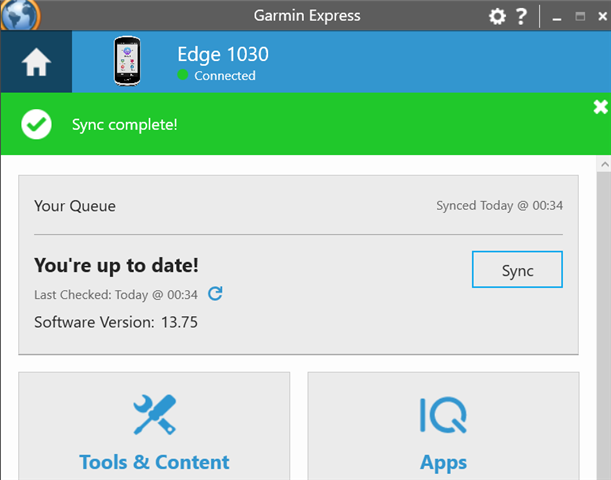
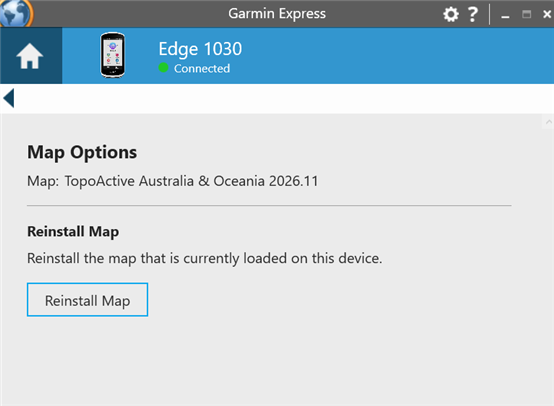
  • Having same issue with Edge 1030, followed steps and still cannot resolve issue.

    - Updated Garmin Express, also tried uninstall, restart & reinstall

    - Followed steps to remove device from GE, delete GarminDevice.xml, reboot and re-add

    Note: the Manage Maps option is also missing on my Garmin Fenix 5 Plus, however Europe was already installed, so it updated OK. My Edge 1030 only had Australia installed and I need to also install Europe for upcoming trip.

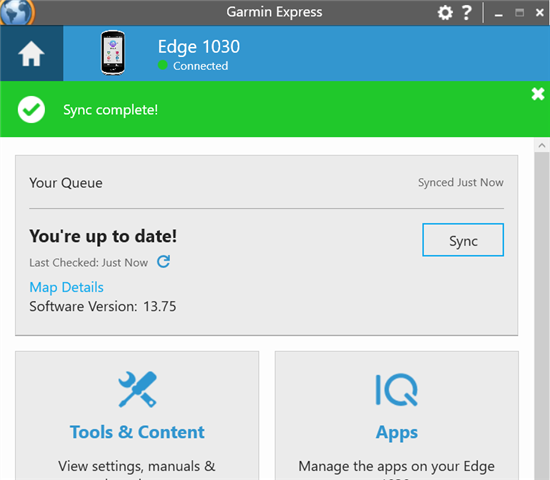
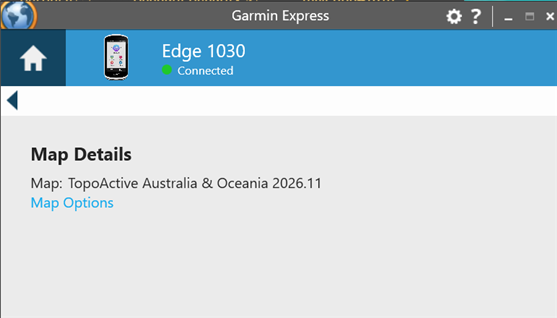
    Update: sometimes I can see Map Details button, but still no option to Manage Maps


  •   would you be able to help please? I'm travelling from Australia to France on Wednesday and would love to have the Europe map available. Thanks!

  • We have emailed you to gather some additional information. If you ever need more immediate assistance please contact our Product Support team for your area/region at https://support.garmin.com

  • Email me too please. Have tried everything in this thread, all the previous threads, nothing worked.

    Deleting .xml, removing, reinstalling. Nothing works. Tactix delta, windows.

  • I have sent you an email to gather additional information in regard to this. 

  • Hello, I have same issue, could I also get the email?

  • Hello,

    Fenix6x pro user here.

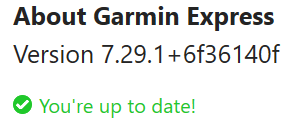
    Fresh install of GE 7.29.1 +6f36140f on windows 11, no previous version installed.
    Added watch
    Clicking update reported nothing, no sub data/metadata.

    Followed the Dragona instructions from the previous thread as referenced above and i disconnected the watch from the PC, clicked it in GE and the update/manage maps button appeared. I clicked update and now my watch is updating.

    "

    I've been having this issue for quite a while now and think i have a work around but not a solution.

    1. Load Garmin Express without any devices plugged in

    2. Go into your device (still not plugged in, grey dot)

    3. Click "Manage Maps" when it appears

    4. Follow the new prompt to now plug your device in 

    5. Wait for MTP protocol to activate on your device.

    6. You can now continue to manage maps as we used to (until you close the maps window, you'll have to start again from step 2 to get the maps window open again if that's the case).

    "


    Seems like the resolution to the previously reported no manage maps/updates bug info hasnt worked fully.

    Maps are now updating, but this was a poor first experience using GE on PC.

    I didnt do any deleting of xml files on the device at this stage, I will report back when this update has finished as to whether i have to repeat the above procedure each time.