Just finished a run like I always do but no GPS was logged.

Like the title says on my 965 I started a run like I always do and selected a course to run.

I saw where I was during the course but in my saved activity I don't see a map. 

Since it's winter I have been logging two treadmill exercises but I did choose the 'Treadmill' profile for that.

When editing the activity I also can't add the coordinates manually.

I have been looking at: https://support.garmin.com/en-US/?faq=ebPOlI4buWAZDXIqCG44w8 which mentions an Indoor-marker but I don't see anything related to that or GPS on/off in that profile (I do see a hole bunch of incomprehensible options like 3d distance)

Any ideas?

Top Replies

All Replies

  • Also, this afternoon I walked the dog and logged a Walk-activity. This was also logged without a map. Did I disabled this globally somewhere? (happy I'm seeing this during a regular 5km traning run and not a longer distance though.)

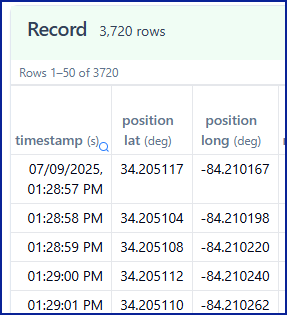
  • To see if the watch is recording GPS data correctly, you can upload the actual FIT file from your watch to FIT File Viewer.

    This will show you if there’s positional data in the activity. Once uploaded, check the “Record” section; it should list many rows with position latitude and longitude.

  • Thanks for your response. Ok, I'm seeing 47 rows at GPS event. Record is showing me no position (lat lon) columns though.

    It would be great if I can add the map to this 'lost' activity. But what I would rather like to know is how this happened and what I can do to make sure this doesn't happen again.

  • I'm seeing 47 rows at GPS event.

    You won't see positional lat/lon under GPS event. That data would be under "Record," as in my screenshot. I'm just trying to confirm whether or not your activities actually contain records of GPS data. Then we can see what can be done to prevent it in the future.

    If there is no GPS data, without knowing what actually happened, I can only guess. Sometimes when starting a course, it is common to forget to start the activity. 

    Select Run > Navigate > Courses > Select the course > Do Course > Then press the start/stop button to start recording the activity. Otherwise, nothing gets recorded.