
Straight line navigation

I'm sure this has been covered somewhere, but how do I enable straight line navigation to a waypoint without reference to a map? It's useful for navigating in wild places and on water but seems lost in the 965 settings. I just want a distance and bearing to a waypoint - it should be simple!

  • I have a Forerunner 955, but its software is very similar to Forerunner 965.

    1) If you mean that you want to *see* the distance and bearing to a waypoint (saved location):

    During an activity, hold UP, select Navigation > Saved Locations > [select a location] > Go To.

    A data field will automatically be added to your activity which has the bearing and distance to the location

    2) If you mean that you want to permanently save a waypoint by entering the distance and bearing, you need to add and use the Project Wpt. app to your activity list.

    This link is for the FR935 manual, but the procedure is similar for FR955 and should be similar for FR965:

    https://www8.garmin.com/manuals/webhelp/forerunner935/EN-US/GUID-9F043B95-2D8C-472D-9B76-4BE54DB55264.html 

    3) Finally, if you mean that you just want to navigate to a waypoint "on the fly" using bearing and distance, you probably want to open an activity, hold UP > select Navigation > Sight and Go. This will show you a compass. You orient yourself in the direction of the waypoint, press the START button, then enter the distance to the waypoint.

    https://youtu.be/NwikxpSUeUg?t=892 

    I think you mean 3), but just wanted to cover all the bases.

  • All good answers but don't work on the 965 - I'm looking to navigate by bearing and distance to a waypoint with known coordinates - it used to be the default setting on eTrex's! The 965 defaults to navigating by map - which is really annoying in wild places or on water where it is possible to navigate pretty well by straight line.

  • I'm looking to navigate by bearing and distance to a waypoint with known coordinates

    Ok, let's assume that you're already in an activity profile (like Run or Hike).

    - Hold UP for the menu

    - Select Navigation > Coordinates

    - Enter the coordinates and select Done

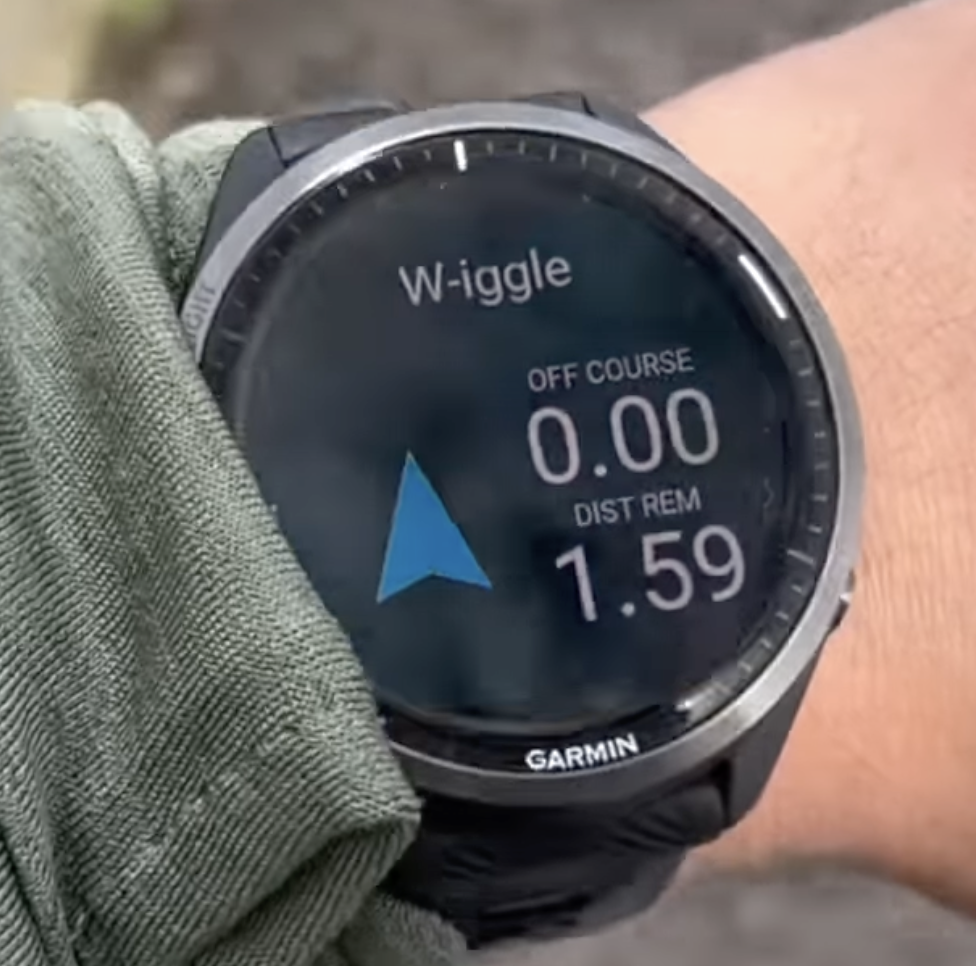
    Yes, the map will be used for navigation to those coordinates, *but* there will also be an additional data page with bearing (in the form of a big arrow) and distance to your destination. Both the map and the bearing/distance remaining pages should be added automatically once you start navigation.

    Same goes if you navigate to a saved location or you follow a course.

    It looks something like this, except if you're not following a course, it doesn't show the "off course" field:

    https://youtu.be/NwikxpSUeUg?t=284