Bug: climbing data: web site ascent chart is missing ascent events

In this personal profile:

https://connect.garmin.com/app/profile/3c19dfe8-50ac-496f-ad71-54b0164bca19

in the following 'indoor climbing' activity:

https://connect.garmin.com/app/activity/23575564983

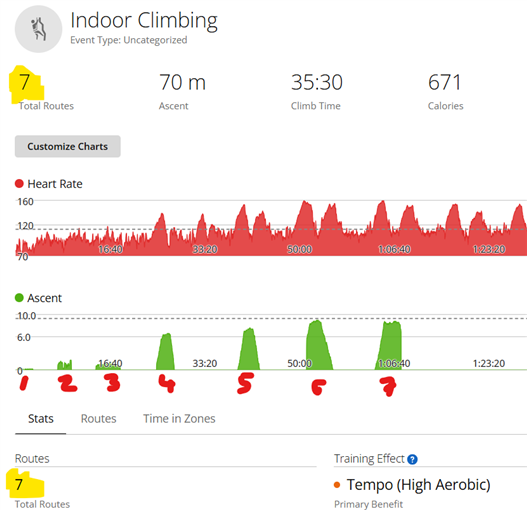
web site ascent chart shows 5 ascent events (incorrect),

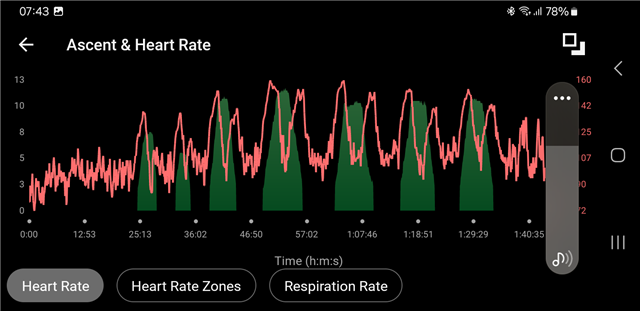
while the same ascent chart on the mobile app shows 7 ascent events (correct).

  • web site ascent chart shows 5 ascent events (incorrect),

    I see seven of them, on the web, although the first three are rather short:

  • thanks for looking;

    yes, you are right;

    yet let me clarify the issue:

    the heart rate chart shows double peaks,

    since I climb up , then rest, then climb down (not just drop down on a belay)

    first higher heart rate peak means going up, second lower peak means going down

    so I expect the 7 double peaks of heart rate to correlate with 7 altitude peaks on time scale,

    which they in fact do correlate on the mobile app, but do not correlate on the web site presentation

    here is screenshot from the phone app

  • The two screenshots do not correlate at all. Not only the number of climbs is different, but also the elevations profile, the HR curve, and the times are completely different. On my mind you are comparing two different activities.

    Please export the activity from Garmin Connect Web, and post the zipped FIT file here, in order that we can have a look at it closer.

  • If your Garmin Connect web ascent chart is missing specific climbing events, such as ClimbPro sections or laps, it may be caused by uncalibrated device sensors, incorrect elevation settings, or an activity that was recorded without a mapped course. You can often improve the elevation data displayed for an activity by changing its elevation source in Garmin Connect:

    1. Sign in to your Garmin Connect account from a web browser.
    2. Select Activities from the navigation menu on the left.
    3. Select All Activities.
    4. Click the name of the affected activity.
    5. Select the gear icon in the upper-right corner.
    6. Choose Change Elevation Source.
    7. Select your preferred elevation source.
    8. Click Save.

    Note: Changing the elevation source only affects the selected activity and does not change the elevation settings that will be applied to future activities.